ShowScript Panels
ShowScript Panels provide a flexible way to build graphical user interfaces (GUIs) for show control. They are designed to be lightweight, web‑based, and easy to configure, allowing you to control your show from virtually any device.
Overview
ShowScript includes a built‑in web server that exposes control panels through a standard web browser. This means:
- Any modern web browser can be used as a control surface
- Panels can run on PCs, tablets, HMIs, or embedded systems
- Devices only need network access to the ShowScript server IP
Panels are defined as simple JSON files and rendered dynamically by the embedded web server.
Panel Concept
A panel is essentially a grid of interactive buttons:
- You define the number of rows and columns
- Buttons can be placed freely within the grid
- Each button can execute ShowScript code in real time
You can create as many panels as needed, each tailored to a specific operator role or show task.
Buttons and Actions
Each button (referred to as a knob in the configuration) supports the following properties:
- Title – Text displayed on the button
- Background color – Button background color
- Text color – Button label color
- Action – ShowScript code executed when the button is pressed
The action uses the same syntax as normal ShowScript code. For example, to start a sequence named seqTest, the button action would be:
seqTest.start();
This code is evaluated in real time when the button is clicked.
Enabling the Panel Web Server
The panel web server is embedded within the ShowScript API driver. To enable it, initialize the API driver in your ShowScript project:
api = new Drivers.API(8080);
This starts the embedded web server on port 8080.
Panel Directory Structure
Panels are loaded from a dedicated directory in your ShowScript project:
- In your project root, create a directory named:
panel/
- This directory will contain all panel definition files.
Creating Your First Panel
To create the default panel:
- Inside the panel directory, create a file named:
default.json
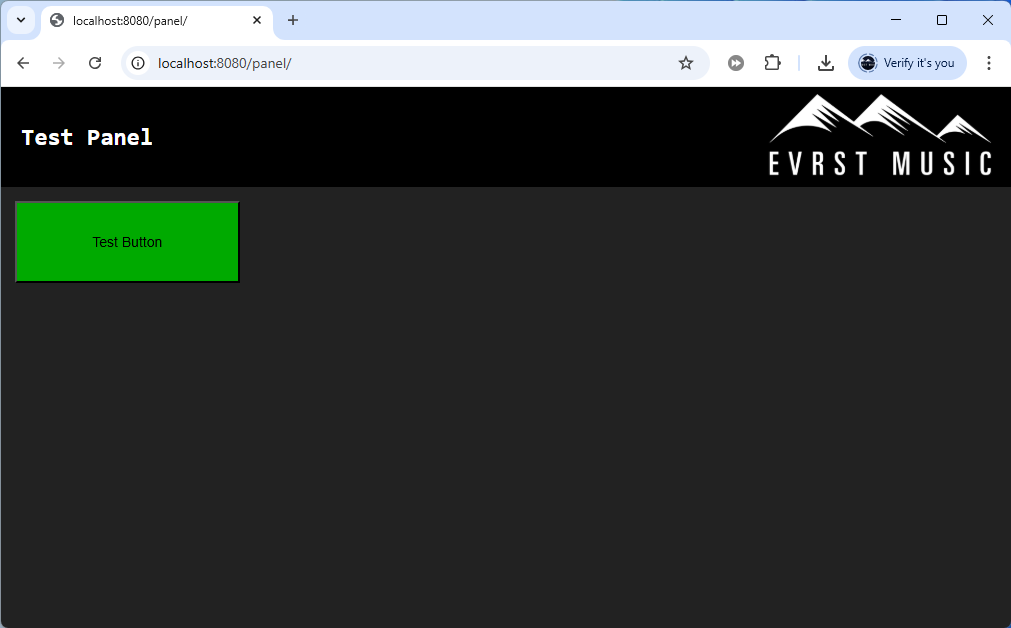
- Add the following content:
{
    "title": "<b>Test Panel</b>",
    "backgroundColor": "#222",
    "grid": {
        "rows": 4,
        "columns": 4
    },
    "knobs": [
        {
            "title": "Test Button",
            "backgroundColor": "#00AA00",
            "color": "black",
            "onClick": "seqTest.start();"
        }
    ]
}
- Save the file and start the ShowScript engine.
- Open a web browser and navigate to:
http://localhost:8080/panel
The default panel will now be displayed.
Multiple Panels
You can define as many panels as required. Each panel is represented by a separate JSON file.
For example, if you create:
panel/anotherpanel.json
You can access it at:
http://localhost:8080/panel/anotherpanel
This makes it easy to create dedicated panels for different operators, devices, or show segments.
Summary
ShowScript Panels offer a powerful yet simple way to build custom control interfaces:
- Web‑based and device‑agnostic
- Fully configurable via JSON
- Real‑time execution of ShowScript code
- Unlimited panels and layouts
They are an ideal solution for building intuitive and reliable show control interfaces.